

How to Design Instagram Posts for Beginners: A Step-by-Step Guide Designing Instagram posts is easier than it may seem, even if you have never used graphic design software. With a free design tool, a few good images, readable fonts, and a simple color scheme, you can create attractive posts for your business, personal brand, or
How to Design Instagram Posts for Beginners: A Step-by-Step Guide
Designing Instagram posts is easier than it may seem, even if you have never used graphic design software. With a free design tool, a few good images, readable fonts, and a simple color scheme, you can create attractive posts for your business, personal brand, or social media account.
The key is to make every post easy to understand on a mobile screen. You do not need expensive software or advanced design skills. Start with one clear message, choose the right dimensions, and use a consistent visual style.
This beginner-friendly guide explains how to design Instagram posts for beginners, from choosing a template to exporting your finished graphic. You will also learn practical design principles, common mistakes to avoid, and ways to keep your Instagram feed visually consistent.
Why Good Instagram Design Matters for Engagement
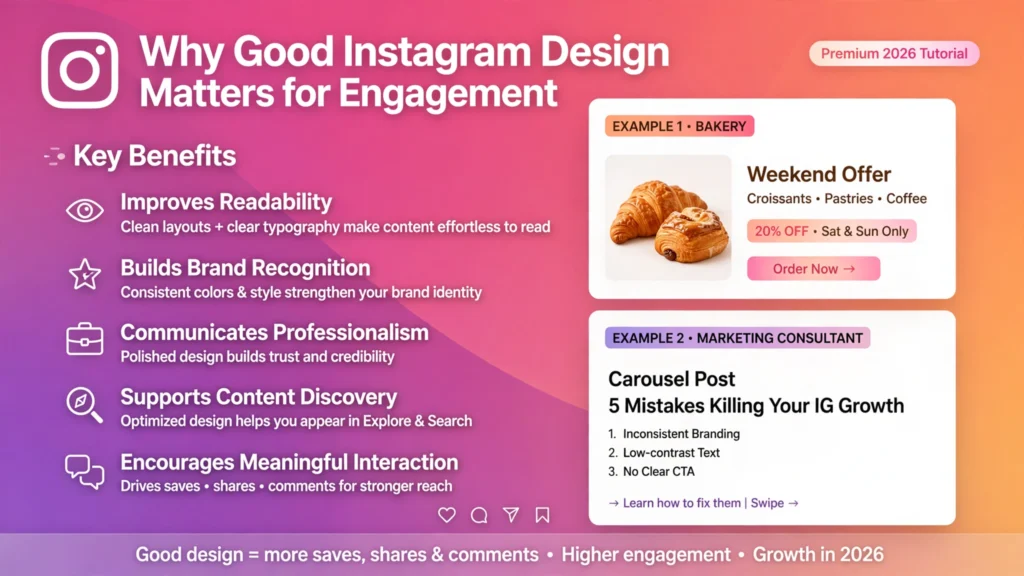 Good Instagram design helps people understand your message quickly. When users scroll through their feeds, a clear visual can make it easier to recognize your content and decide whether to stop and read.
Effective design can support your social media goals in several ways:
- Improves readability: Clear text and organized layouts make your message easier to understand.
- Builds brand recognition: Repeated use of colors, fonts, and visual elements helps people recognize your content.
- Communicates professionalism: Carefully selected images and consistent formatting can make your business appear more organized.
- Supports content discovery: A useful headline on a post or carousel cover helps communicate what the content offers.
- Encourages meaningful interaction: A helpful, relevant graphic can prompt readers to save, share, comment, or visit your profile.
However, attractive graphics alone do not guarantee engagement. Your results also depend on the usefulness of your content, audience interests, captions, timing, and other factors.
For example, a bakery could create a simple graphic announcing a weekend offer, while a marketing consultant might share a carousel explaining five common social media mistakes. Both designs should make the main message immediately clear.
Essential Tools You Need to Get Started
You can create professional-looking Instagram graphics using a computer, tablet, or smartphone. Beginners can start with free tools and upgrade only when they need additional features.
Canva
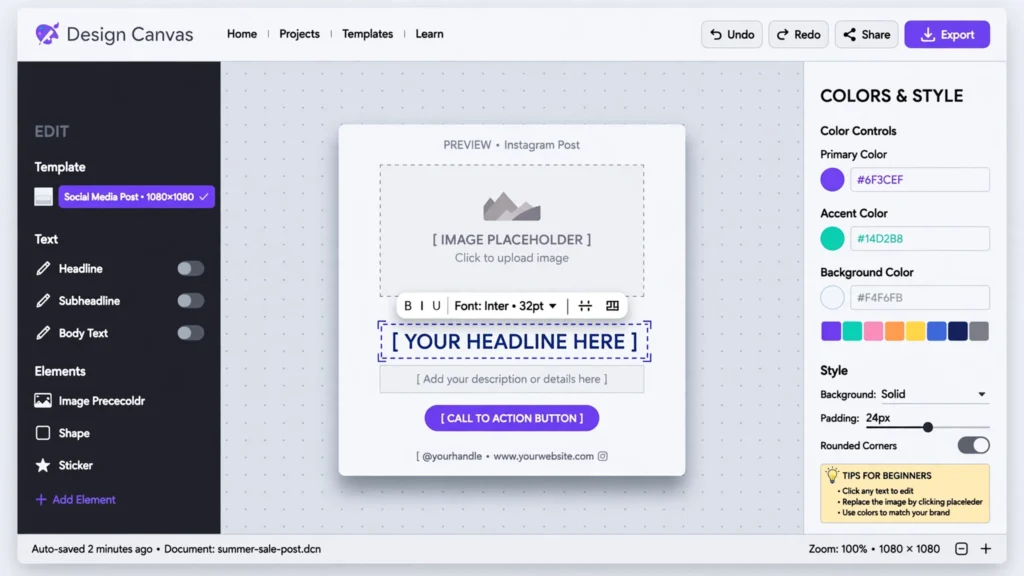 Canva is a popular option for beginners because it provides ready-made layouts, text tools, image elements, and design templates.
You can use it to create:
- Promotional graphics
- Quote posts
- Educational carousels
- Product announcements
- Event invitations
- Instagram Story graphics
Choose a free template, replace its text and images, and adjust the colors to match your brand. Some templates, photos, and features require a paid plan, so check the labels before using them.
Adobe Express
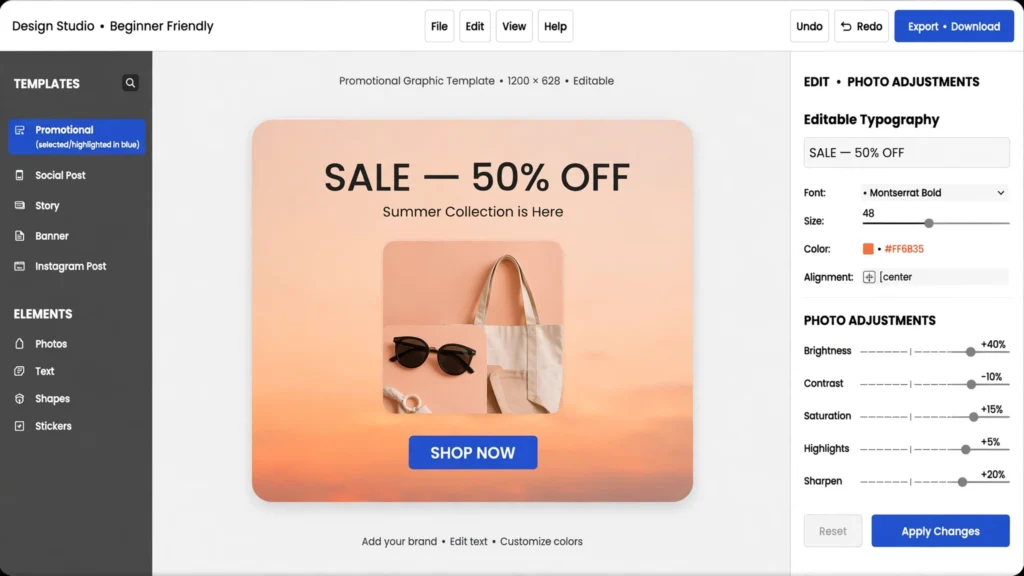 Adobe Express offers templates and tools for creating social media graphics, promotional content, and other visual materials. Its free features can be useful for beginners who want to experiment with layouts and typography.
Compare its current free features with your needs before choosing a subscription.
Other Useful Tools
You may also find these tools useful:
- Photo editing apps: Adjust brightness, crop images, and improve basic composition.
- Image libraries: Find suitable stock photos, while checking the license for each image.
- Brand color tools: Save a small selection of colors for repeated use.
- Cloud storage: Organize logos, photos, templates, and finished graphics.
You do not need every tool on this list. Start with one design application and learn its essential features before adding more.
Understanding Instagram Post Sizes and Formats
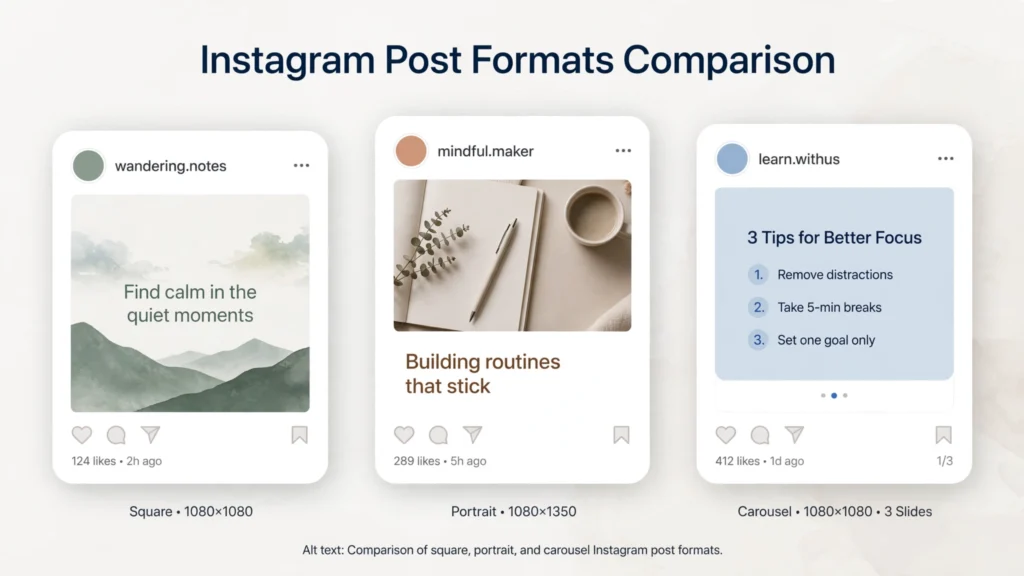 Choosing the correct dimensions helps your graphics display as intended. Instagram supports different image orientations, and the best format depends on your content and how you want people to view it.
Here are practical dimensions for designing standard feed graphics.
| Format | Dimensions | Best use |
|---|---|---|
| Square | 1080 × 1080 px | Quotes, announcements, and simple graphics |
| Portrait | 1080 × 1350 px | Educational posts, product features, and tips |
| Landscape | 1080 × 566 px | Wide photographs and horizontal compositions |
| Carousel | Commonly 1080 × 1350 px for portrait slides | Tutorials, step-by-step guides, and lists |
These are useful design dimensions, not a guarantee of how every image will appear in every Instagram placement. Instagram’s display and cropping behavior can change, so check its current specifications before publishing.
Square Posts
Square graphics are straightforward to design because their equal sides make it easier to balance text and images.
Use this format for:
- Short quotes
- Product announcements
- Simple promotional messages
- Minimalist illustrations
Keep important text away from the edges so the design remains comfortable to read.
Portrait Posts
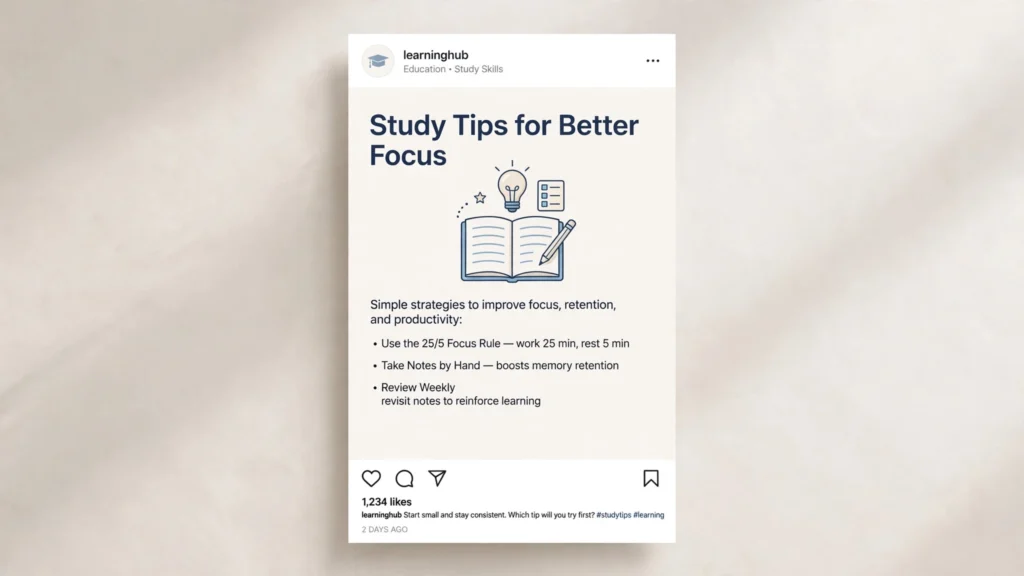 Portrait posts are taller than square posts and can occupy more vertical space in the feed. This makes them useful for educational graphics and designs that need a little more room for text.
Avoid filling the entire canvas with information. Leave enough empty space around headings, illustrations, and supporting text.
Carousel Posts
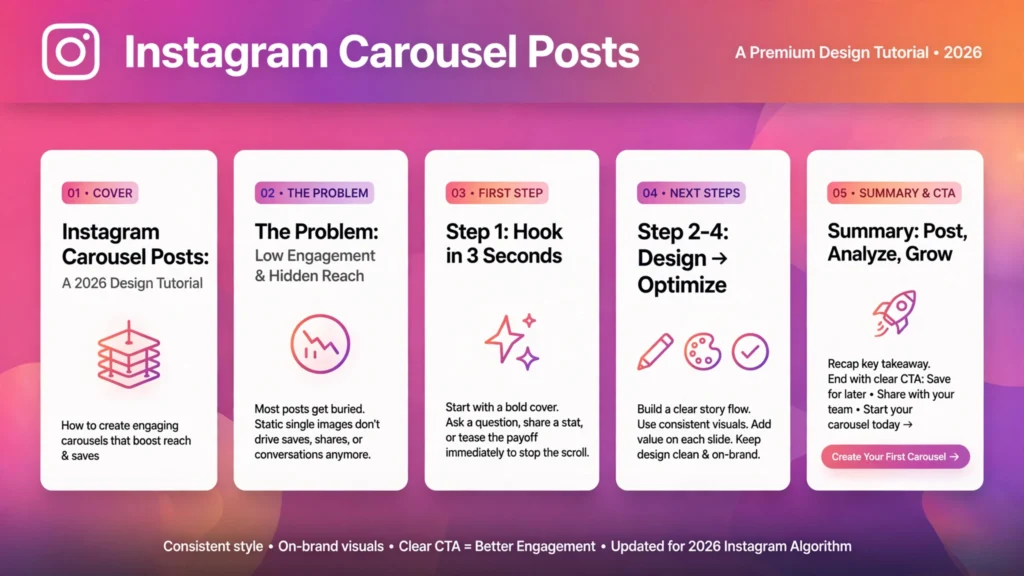 A carousel lets you group multiple pieces of content into one feed post that viewers can navigate through.
For a beginner-friendly tutorial, you could create:
- A cover explaining the topic.
- A slide describing the problem.
- A slide showing the first step.
- A slide demonstrating the next steps.
- A summary with a relevant call to action.
Using the same dimensions and visual style across all slides makes the carousel feel connected. Keep each slide focused on one main idea.
Step-by-Step Guide on How to Design Instagram Posts
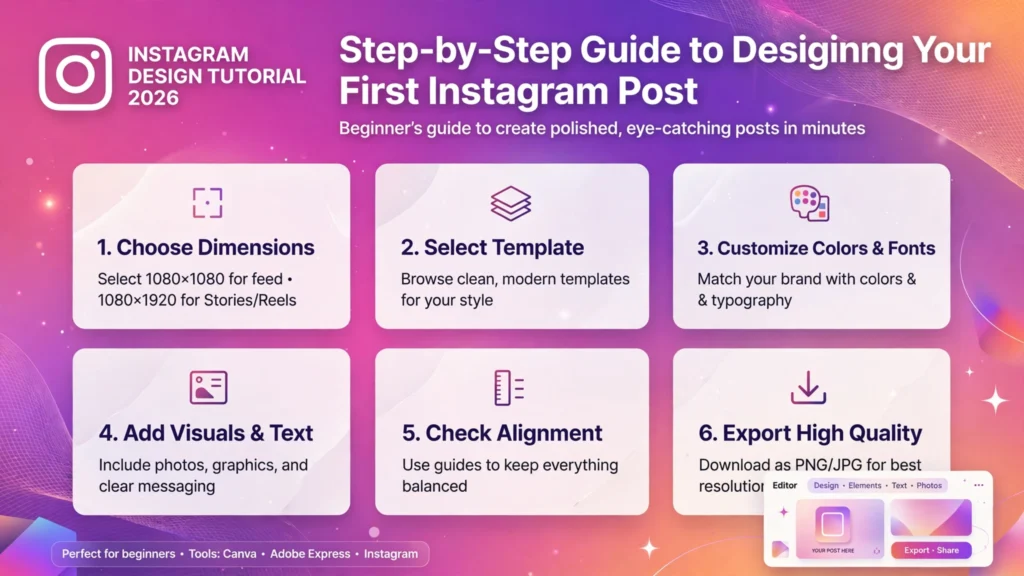 The simplest way to learn Instagram design is to create one post from beginning to end. Follow these steps using Canva, Adobe Express, or another editor with similar features.
Step 1: Choose the Correct Dimensions
Start by deciding what type of content you want to publish.
If you are designing a quote or short announcement, a square canvas may work well. For a list of tips or an educational graphic, consider a portrait canvas.
Open your design tool and select the appropriate dimensions. If custom sizing is available, enter the width and height in pixels.
Before moving on, check that the canvas matches your intended format.
Step 2: Select a Layout or Template
A template gives you a starting structure, so you do not need to design everything from scratch.
Look for a layout that suits your message. A product post might need a large photograph and a short headline, while an educational graphic may need a clear title and several short points.
When choosing a template:
- Select one that is easy to read.
- Avoid layouts with too many decorative elements.
- Check that there is enough room for your actual text.
- Choose a structure that works with your images.
- Make sure you can legally use its included elements for your intended purpose.
Do not choose a template simply because it looks attractive. Choose one that helps communicate your message.
Step 3: Customize Colors and Fonts
Replace the template’s default colors with a small, coordinated palette. If you already have a brand identity, use its established colors.
For a new account, start with two or three main colors and one accent color if needed.
Next, select your fonts. A simple combination of one font for headings and another for supporting text is often enough.
For example, a small business might use a bold sans-serif font for the headline and a clean, regular-weight sans-serif font for the details.
Check the design at a smaller size or preview it on your phone. If the text becomes difficult to read, increase its size, improve the contrast, or simplify the layout.
Step 4: Add High-Quality Visuals and Text
Choose a photo, illustration, or icon that supports the subject of your post.
For example, a fitness coach sharing a stretching tip could use a relevant exercise photograph. A handmade jewelry business might feature a clear image of one product.
Then write the text that belongs on the graphic.
A useful structure is:
- Headline: Communicate the main idea.
- Supporting text: Add a brief explanation or useful detail.
- Call to action: Tell readers what to do next, when appropriate.
A call to action might say “Save these tips,” “Explore the collection,” or “Read the full guide.”
Avoid placing your entire caption on the image. Keep the graphic concise and use the caption for additional explanations.
Step 5: Check Alignment and Spacing
Before exporting, review the entire design.
Check that:
- The headline is easy to identify.
- Text blocks line up neatly.
- Elements have enough breathing room.
- The main image is not obscured by unnecessary decorations.
- Colors and fonts are used consistently.
- Important content is not too close to the canvas edges.
Alignment does not mean every element must be centered. Left-aligned text can be easier to scan, while centered text may suit short quotes or simple announcements.
Choose the arrangement that makes the message easiest to understand.
Step 6: Export in High Quality
When the design is ready, download it in a suitable image format.
PNG is often a good choice for graphics containing text, icons, and flat-color illustrations. JPEG is commonly suitable for photographs and photo-heavy designs.
Use the highest practical quality available without creating unnecessarily large files. Confirm the dimensions and check that the downloaded file looks the same as the editor preview.
Finally, open the exported image on your phone. This simple check can reveal small text, awkward cropping, or alignment problems that are less obvious on a computer.
Key Principles of Clean and Professional Instagram Graphics
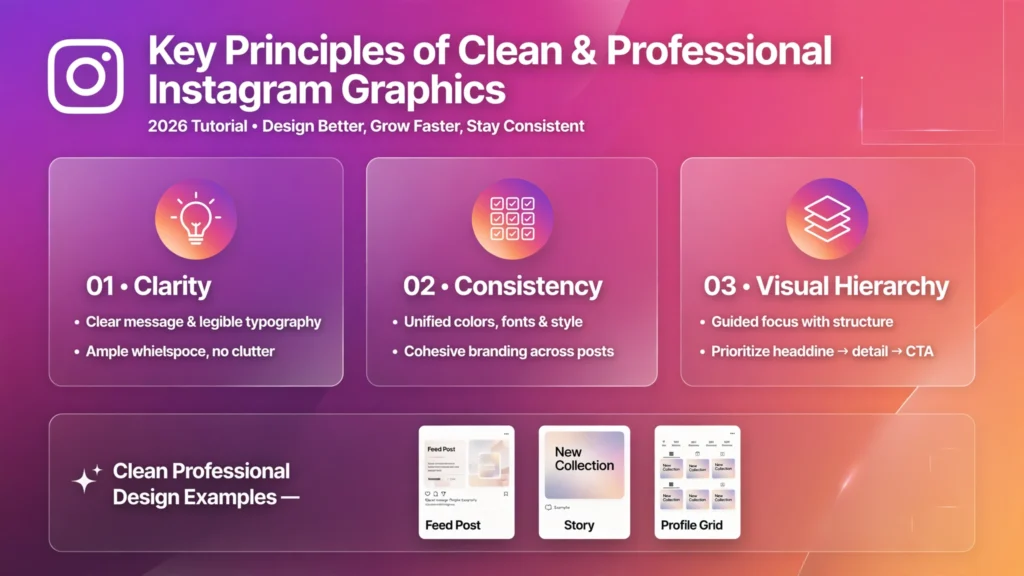 Professional-looking graphics are usually built on a few simple principles rather than complicated effects. Focus on clarity, consistency, and a clear visual hierarchy.
Choose a Simple Color Palette
Color influences how a graphic feels and helps separate different elements.
You can begin with:
- One primary color for prominent elements.
- One secondary color for backgrounds or supporting areas.
- One neutral color, such as white, cream, gray, or black.
- One accent color when an additional highlight is useful.
Use colors that suit your brand and content. A children’s activity account might use bright, playful colors, while a professional consulting brand might prefer a restrained palette.
Pay attention to contrast. Dark text on a light background or light text on a dark background is often easier to read than two similar shades.
As a useful accessibility benchmark, the Web Content Accessibility Guidelines (WCAG) recommend a contrast ratio of at least 4.5:1 for normal-sized text and 3:1 for large text. These are web accessibility criteria, not an Instagram-specific design certification, but they provide a helpful reference when evaluating text contrast.
Use Readable Font Pairings
Typography affects how quickly readers can understand your content.
For beginner designs, consider these guidelines:
- Use no more than two font families unless there is a clear reason to add another.
- Make the headline visibly more prominent than supporting text.
- Avoid decorative fonts for long explanations.
- Use bold text selectively to emphasize key words.
- Check readability on a mobile screen.
There is no universal font size that works for every design because the amount of text and the viewing context differ. Instead, preview the graphic at the size people are likely to see it.
Create a Clear Visual Hierarchy
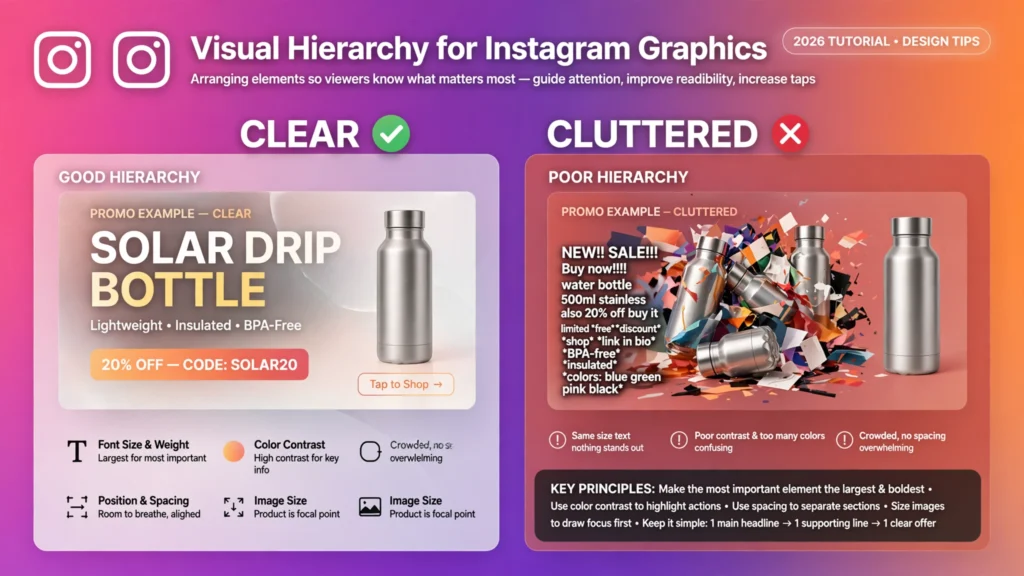 Visual hierarchy means arranging elements so viewers can tell what matters most.
Make the main message the first thing people notice. Supporting details should come next, followed by secondary information.
You can establish hierarchy through:
- Font size
- Font weight
- Color contrast
- Position
- Spacing
- Image size
For example, a promotional graphic might feature the product name prominently, followed by a short description and then the offer details.
Avoid giving every element the same size and visual weight. If everything competes for attention, nothing stands out.
Leave Enough Empty Space
Empty space, also called whitespace, is the area around and between design elements. It does not have to be white.
Adequate spacing helps separate information and makes a graphic feel less crowded. It can also guide the viewer’s attention toward the headline or main image.
If a design looks busy, remove unnecessary icons, decorative shapes, or secondary text before adding more elements.
How to Use Free Templates Effectively
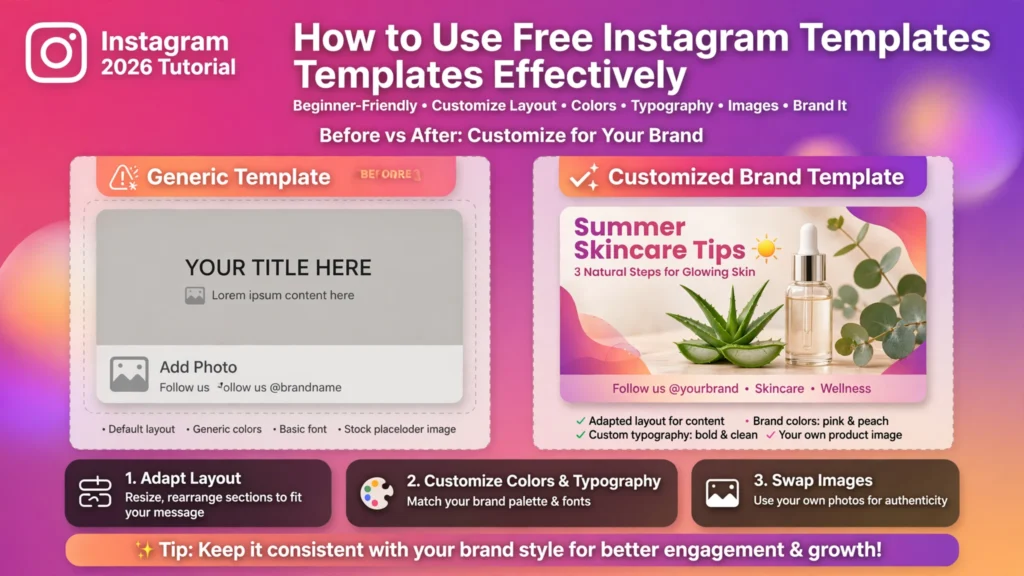 Free templates can help beginners create graphics more quickly, but using them well requires more than changing a few words.
Start with a template that matches your content. Then adapt its layout, colors, typography, and images to suit your purpose.
Make the Template Your Own
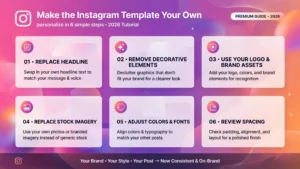 Follow these steps to personalize a template:
- Replace the original headline with your own clear message.
- Remove decorative elements that do not add value.
- Use your own logo or approved brand assets.
- Replace stock imagery with suitable original or properly licensed visuals.
- Adjust colors and fonts to match your other posts.
- Review spacing after making changes.
A template should provide structure, not determine your entire visual identity.
Check Image and Template Licensing
Before publishing, check the terms of the template, stock photos, icons, and other assets you use.
A free download does not automatically mean an asset can be used for every commercial purpose. Some services have different conditions for free and paid resources.
Do not use another creator’s photographs, illustrations, or branded designs without appropriate permission or a license that covers your intended use.
If you are creating posts for a client, also confirm that the assets can be used for that client’s project.
Common Instagram Design Mistakes and How to Avoid Them
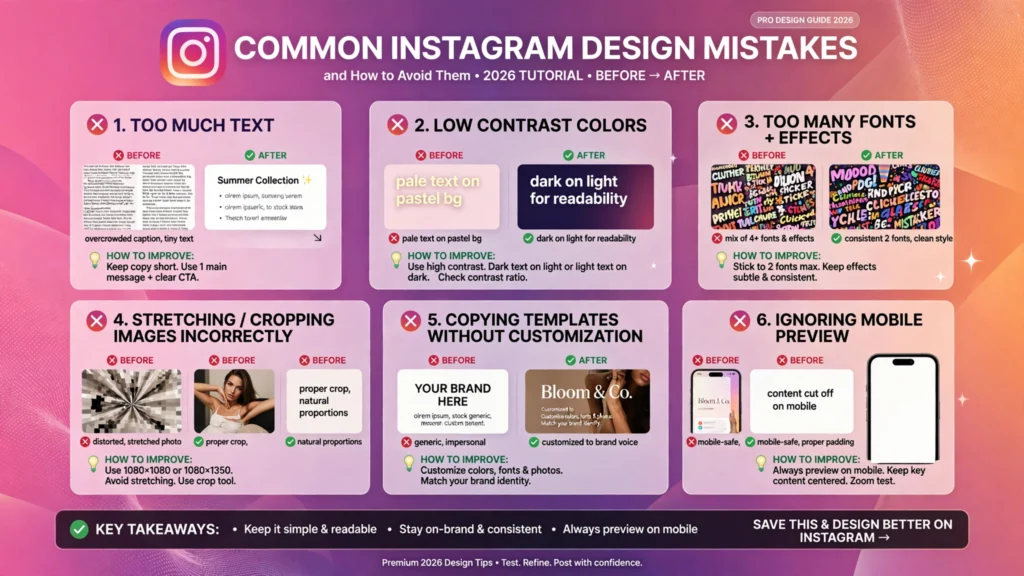 Even a simple graphic can become difficult to understand when too many elements compete for attention. Watch for these common problems as you design.
Using Too Much Text
A graphic filled with long paragraphs is difficult to scan on a phone.
How to improve it: Keep the image focused on one central idea. Break longer explanations into multiple carousel slides and place additional details in the caption.
Choosing Low-Contrast Colors
Text can disappear into the background when the colors are too similar.
How to improve it: Test the text against its background. Increase the difference in brightness, add a solid background behind the text, or change the text color.
Using Too Many Fonts and Effects
Multiple decorative fonts, shadows, outlines, and animations can make a graphic look inconsistent.
How to improve it: Choose a small set of fonts and use effects only when they improve clarity.
Stretching or Cropping Images Incorrectly
Stretched photos can look unnatural, while careless cropping can remove important parts of a subject.
How to improve it: Preserve the image’s proportions when resizing. Adjust the crop deliberately and check that faces, products, or other important details remain visible.
Copying Templates Without Customization
Using the same template as many other accounts may make your posts less distinctive.
How to improve it: Change the layout where appropriate, use original text and relevant visuals, and apply your own visual identity.
Ignoring the Mobile Preview
A design may look readable on a large monitor but become difficult to read on a phone.
How to improve it: Review the exported image on a mobile screen before publishing. Increase small text sizes, simplify crowded areas, and check the edges for unwanted cropping.
Quick Tips to Keep Your Instagram Feed Cohesive
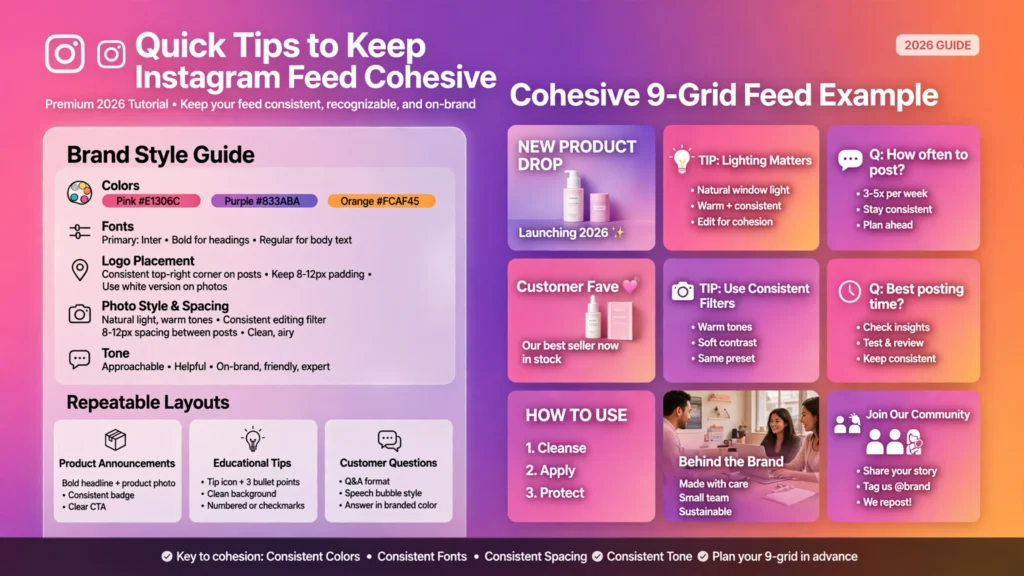 A cohesive feed helps people recognize your brand without making every post look identical. The goal is to create a recognizable style while giving different types of content enough room to stand out.
Create a Small Brand Style Guide
Write down the basic choices you want to repeat:
- Your primary and secondary colors
- Your headline and body fonts
- Your logo placement, when applicable
- Your preferred photo style
- Your usual spacing and alignment
- Your general tone of voice
Keep the guide simple enough to use whenever you create a new post.
Use Repeatable Layouts
Create a few reusable layouts for recurring content types.
For example, a business might use one layout for product announcements, another for educational tips, and a third for customer questions.
Repeat the same visual rules while changing the content and imagery. This reduces design time and makes your posts feel connected.
Plan Content Before Designing
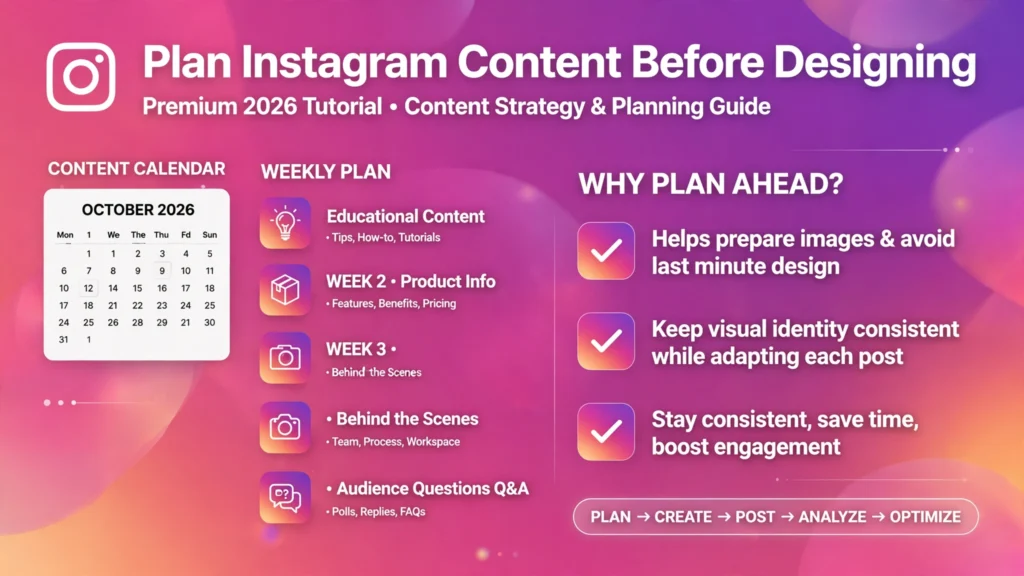 Before opening your design tool, decide what you want to publish during the coming week or month.
A simple plan might include educational content, product or service information, behind-the-scenes posts, and answers to common audience questions.
Planning ahead helps you prepare appropriate images and avoid designing every post at the last minute.
You do not need to force every graphic into the same layout. Keep the visual identity consistent while adapting each post to its message.
Frequently Asked Questions
1. How can beginners design Instagram posts for free?
You can use the free features of tools such as Canva or Adobe Express. Choose a suitable canvas size, select a template, customize the text and colors, add an appropriate image, and export the final graphic. Check whether individual assets or features require payment.
2. What is the best size for an Instagram post?
For standard feed graphics, 1080 × 1080 pixels is a common square format, while 1080 × 1350 pixels is a common portrait format. Check Instagram’s current specifications and preview your design to ensure it displays correctly.
3. Is Canva good for Instagram post design?
Canva can be a useful starting point because it offers templates, text tools, and graphic elements. Its suitability depends on your needs, preferred workflow, and whether its free features cover the tools and assets you want to use.
4. How many fonts should I use in an Instagram graphic?
For most beginner designs, one or two font families are enough. Use size, weight, and spacing to distinguish the headline from supporting text rather than adding more fonts.
5. How do I make my Instagram posts look professional?
Use a clear headline, readable typography, strong color contrast, high-quality visuals, balanced spacing, and a consistent color palette. Remove unnecessary decorations and preview the exported graphic on a phone.
6. Should I use square or portrait Instagram posts?
Choose the format that best supports your content. Square posts work well for simple graphics and announcements, while portrait posts offer more vertical room for educational content. Neither format guarantees higher engagement.
7. Can I use free templates for business Instagram posts?
Yes, provided the template and its included assets permit your intended use. Review the licensing terms for photos, fonts, illustrations, and other design elements, especially when creating commercial content.
8. How do I create an Instagram carousel?
Create several slides in the same dimensions, give each slide a clear purpose, and use consistent typography and colors throughout. Start with a useful cover, organize the information in a logical order, and finish with a summary or relevant call to action.
9. How can I make text easier to read on Instagram?
Use a clear font, adequate text size, strong contrast, and enough space around each text block. Avoid long paragraphs on the graphic and test the exported design on a mobile screen.
10. How often should I change my Instagram design style?
There is no fixed schedule. Keep recognizable brand elements consistent, but update your layouts when your content, audience, or visual goals change. Test different designs and review how your audience responds rather than changing everything at once.
Conclusion
Learning how to design Instagram posts for beginners starts with a few basic skills: choosing suitable dimensions, organizing text, selecting readable fonts, using color effectively, and working with quality images.
You do not need to master every design feature at once. Begin with a simple template, focus on one message, and remove anything that distracts from it. As you create more graphics, you will become more comfortable with spacing, visual hierarchy, and brand consistency.
Most importantly, design for the people who will read your posts. Make the message clear, the text comfortable to read, and the visuals relevant to the subject.
Start by creating one Instagram post today. Review it on your phone, make a few improvements, and save the finished design as a template for future content.


















Leave a Comment
Your email address will not be published. Required fields are marked with *