
How to Make a Professional Presentation in Canva for Free Creating a professional presentation does not require expensive software or advanced graphic design skills. With Canva’s free features, you can build attractive slides for school projects, business meetings, online classes, client proposals, and other professional purposes. The key is to combine a clear message with
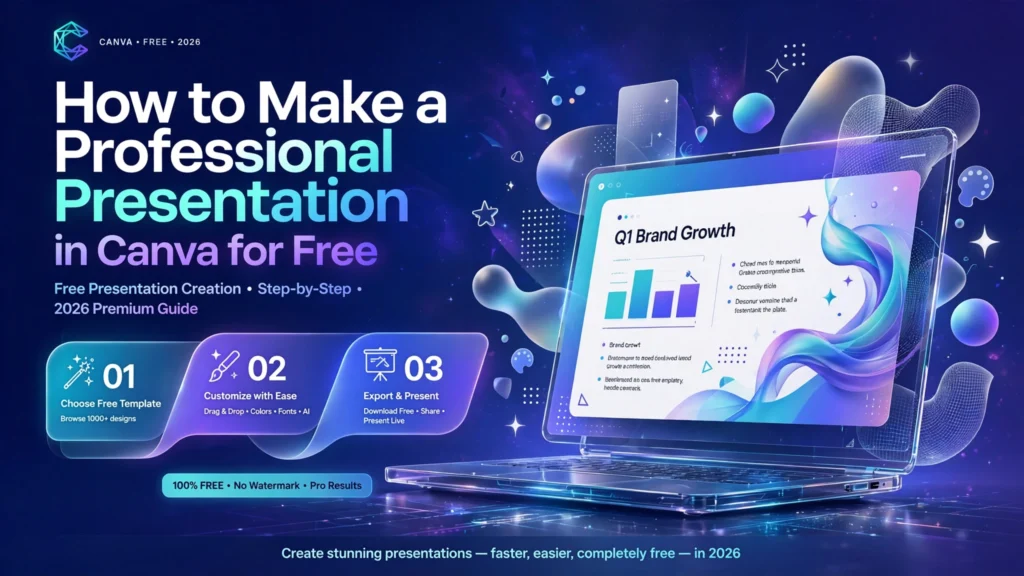
How to Make a Professional Presentation in Canva for Free
Creating a professional presentation does not require expensive software or advanced graphic design skills. With Canva’s free features, you can build attractive slides for school projects, business meetings, online classes, client proposals, and other professional purposes.
The key is to combine a clear message with a simple design. Even if you have never created a presentation before, you can start with a free template, customize its colors and text, add useful visuals, and prepare your slides for presenting or sharing.
In this guide, you will learn how to make a professional presentation in Canva for free, from choosing the right template to downloading your finished slides. You will also learn which features to look for, how to avoid common design mistakes, and how to make your presentation look polished without paying for Canva Pro.
How to Make a Professional Presentation in Canva for Free
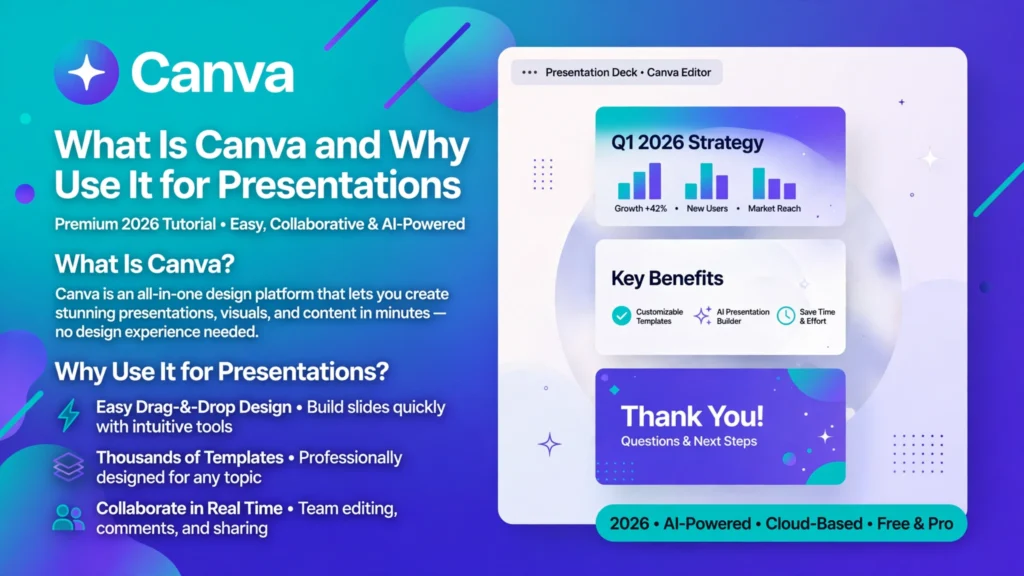 Canva is an online design platform that lets users create presentations, posters, documents, social media graphics, and other visual content. Its presentation editor uses a slide-based layout, so you can arrange text, images, shapes, and other elements without needing to write code or use complicated design software.
You can start with a blank presentation or customize an existing template. This makes Canva useful for beginners who want to focus on their message rather than building every slide from scratch.
Benefits of Canva for Beginners
Canva offers several advantages for people creating presentations for the first time:
- Easy editing: Add text, move elements, resize images, and change colors using the visual editor.
- Ready-made templates: Start with an existing layout instead of designing every slide yourself.
- Visual resources: Use available photos, icons, illustrations, shapes, and charts to support your content.
- Online access: Create and edit presentations through a supported web browser or the Canva mobile app.
- Sharing options: Present online, share a link, or export your work in a suitable file format.
You do not need to master every tool. Learning how to edit text, arrange elements, and maintain consistent formatting is enough to create a strong first presentation.
What You Can Do With Canva’s Free Plan
 Canva Free gives beginners access to presentation creation tools, free templates, fonts, design elements, and supported export options. You can create a professional-looking slide deck without subscribing to a paid plan, provided you use resources and features available to your account.
Some templates, stock assets, advanced editing tools, and other features are marked as premium. Availability can vary by feature and account type.
To avoid unexpected charges, look for the Free label or other clear free-access indicators. If Canva displays a crown or Pro label on an element, template, or feature, check its availability before using it. A design containing premium content may require payment, a license purchase, or replacement of the premium items before you can download it.
For your first project, stick to free resources and keep the design simple.
How to Start a Presentation in Canva
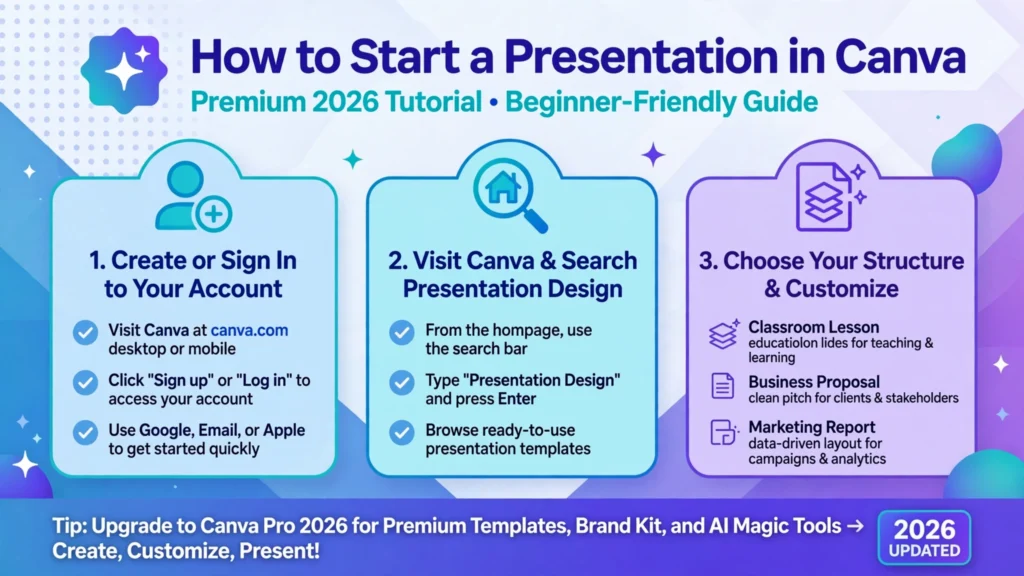
 Before choosing a template, decide what your presentation needs to accomplish. A classroom lesson, business proposal, and marketing report may use similar tools, but each requires a different structure.
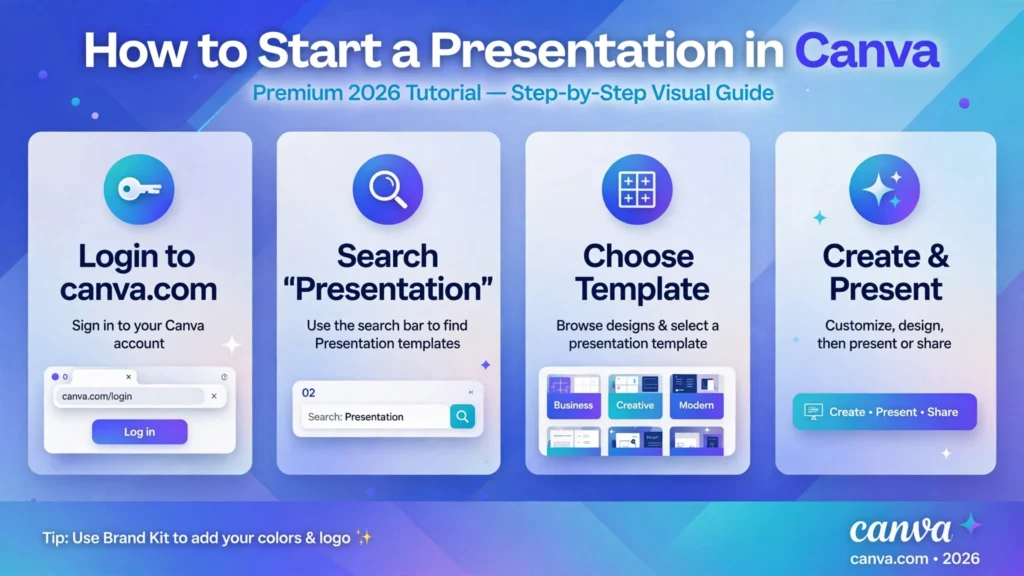
Create or Sign In to Your Canva Account
- Visit Canva.
- Select the option to sign up or log in.
- Choose an available sign-in method and follow the instructions.
- Once you reach your Canva homepage, look for the presentation design option or use the search bar.
Canva’s interface may change over time. If the labels or menus look different from those in this guide, use the homepage search or Canva’s official Help Center to locate the relevant feature.
Find the Presentation Design Option
On a desktop computer, use the homepage search field and enter Presentation. You can also look for presentation designs among the available design types.
Select a standard presentation format to open the editor. Depending on the options displayed, you may see different presentation sizes or specialized formats.
On a phone, open the Canva app and search for Presentation. The editing controls may be arranged differently because of the smaller screen, but the basic process remains similar.
Choose the Right Presentation Format
Choose a format that suits how you plan to use the slides.
- Widescreen presentation: A practical choice for most modern computer screens, projectors, and online meetings.
- Standard presentation: Useful when you need a traditional slide format or must follow an existing specification.
- Custom dimensions: Consider this only when your organization, platform, or project requires a specific size.
For a typical classroom presentation, online lesson, or business meeting, a widescreen format is a sensible starting point.
How to Choose a Professional Canva Presentation Template
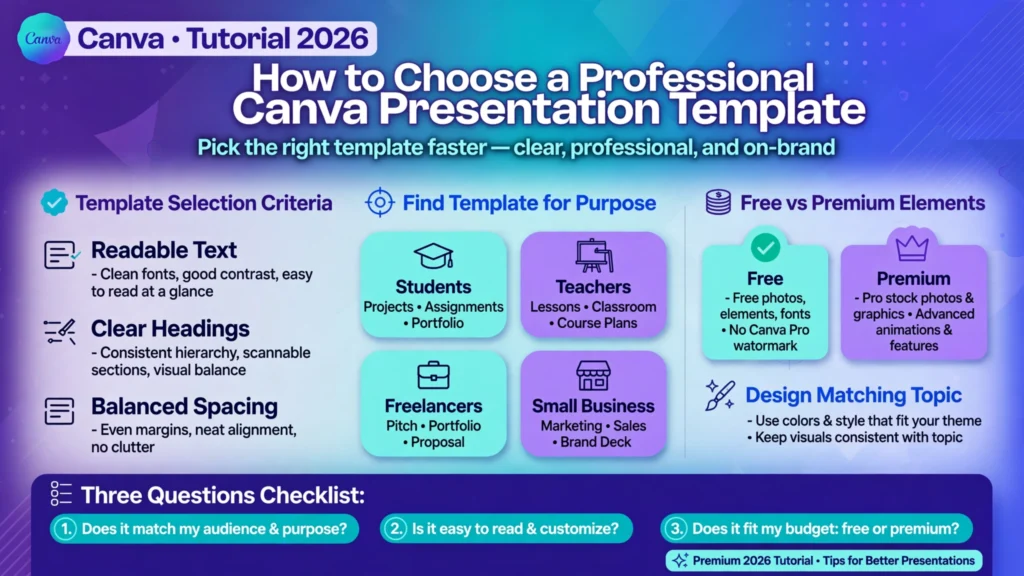 A template provides a starting layout for your slides. However, the most attractive template is not always the most useful. Choose one that helps your audience understand the subject and makes your information easy to follow.
Find a Template for Your Purpose
Search for a template using your presentation topic or intended use. For example:
- Students: Science project, research presentation, book report, or classroom assignment.
- Teachers: Lesson presentation, educational topic, or training session.
- Freelancers: Portfolio presentation, service proposal, or project pitch.
- Small business owners: Business plan, product overview, sales proposal, or marketing report.
Preview the available designs before choosing one. Look for readable text, clear section headings, balanced spacing, and layouts that can accommodate your actual content.
A template with fewer decorative elements may be more useful than one filled with shapes and illustrations.
Identify Free Templates and Elements
Check the template and its individual resources before committing to the design. A template may contain a mixture of free and premium content.
If an element is restricted to a paid plan, look for a similar free alternative in the Elements or Photos sections. You can also replace it with a simple shape, a free icon, or an image you have permission to use.
Do not assume that every item in a template is free simply because you can preview or open the design. Review the download options before spending time customizing the entire deck.
Choose a Design That Matches Your Topic
Your template should reflect the purpose and audience of your presentation.
For example, a financial report might work well with a clean layout, restrained colors, and simple charts. A presentation for young students may benefit from brighter colors and friendly illustrations. A freelance portfolio should emphasize examples of your work rather than decorative backgrounds.
Before choosing a template, ask yourself three questions:
- Is the text easy to read?
- Can I fit my information into the available layouts without overcrowding the slides?
- Does the design suit the subject and audience?
If the answer to all three is yes, you have a good starting point.
You can explore templates and start designing directly on Canva’s official website.
How to Design Your Presentation Step by Step
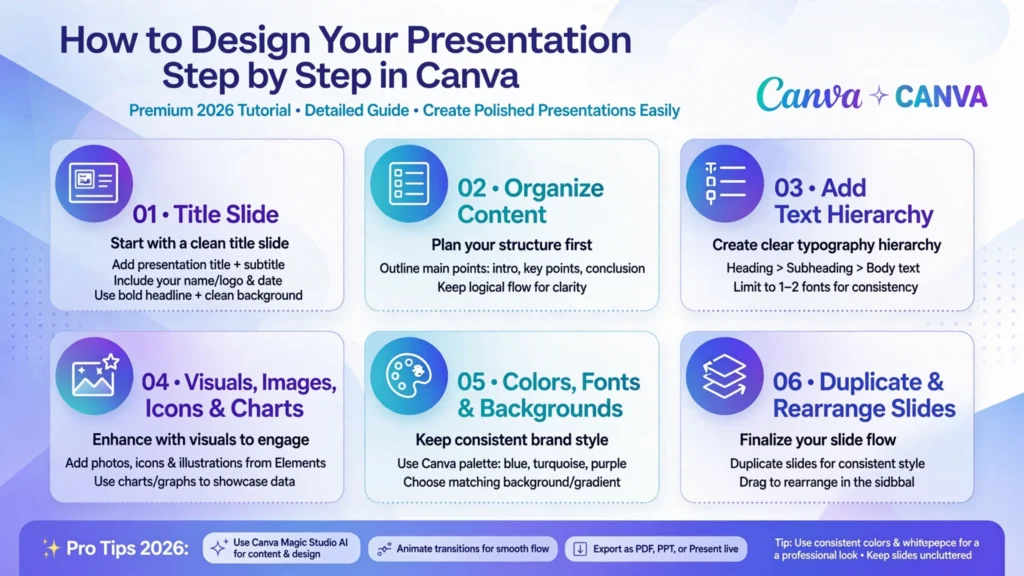 Once you have selected a template, customize it to tell a clear story. The following steps take you from the opening slide to the final review.
Create an Effective Title Slide
Your title slide should tell the audience what the presentation is about and who prepared it, when relevant.
Include:
- A clear presentation title.
- A short subtitle if additional context is useful.
- Your name, organization, class, or role when appropriate.
- One relevant image or a simple visual element, if it improves the design.
For example, instead of using a vague title such as “My Project,” use “How Social Media Helps Small Businesses Reach Customers.”
Keep the opening slide simple. Avoid filling it with a long introduction, multiple logos, unnecessary contact information, and several unrelated images.
Organize Your Content Into Clear Slides
Plan the presentation before spending too much time on design. A simple structure helps your audience follow your ideas from beginning to end.
For example, a presentation about digital marketing could use this sequence:
- Title and introduction.
- The problem the business wants to solve.
- Overview of the target audience.
- Recommended marketing channels.
- Proposed activities and timeline.
- Ways to evaluate results.
- Summary and next steps.
Use a similar structure for other subjects: introduce the topic, explain the important points, provide evidence or examples, and finish with a clear conclusion.
Give each slide one main purpose. If a slide contains several unrelated ideas, split it into separate slides or remove information that does not support your main message.
Add and Format Text
Click a text box to replace its content. To add new text, look for the Text option in the editor and choose an available text element.
Use a clear hierarchy:
- Slide title: Communicates the main point.
- Section heading: Introduces a new idea or category.
- Body text: Explains the information.
- Small supporting text: Provides a source, label, or brief note when needed.
Keep sentences short and use bullets for lists that are easier to scan than paragraphs. Avoid placing an entire essay on a slide. Your slides should support your explanation, not compete with it.
For example, a slide titled “Three Ways to Improve Customer Service” could contain three short points with one brief explanation each, rather than several dense paragraphs.
Use Images, Icons, and Charts
Visuals can make complex information easier to understand when they directly support the message.
To add a visual, open the relevant Photos or Elements section, search for a suitable item, and select a resource that is available for your plan. You can resize and reposition it within the slide.
Choose visuals according to the information you want to communicate:
- Use photographs to illustrate real people, places, products, or situations.
- Use icons to represent simple concepts or categories.
- Use charts to compare values, show changes, or summarize numerical information.
- Use diagrams to explain a process, relationship, or sequence.
If you use a chart, label it clearly and check that the values match your source data. Never add numbers simply to make a slide look more convincing.
Use images you own, create, or have permission to use. For business presentations, check the applicable licensing terms and avoid implying that a stock photograph depicts your actual customer, employee, or product.
Customize Colors, Fonts, and Backgrounds
Consistent styling makes a presentation feel more professional. You do not need a complicated color scheme or several decorative fonts.
Start with two or three complementary colors. Choose one for the main text, one for headings or emphasis, and another for limited visual accents if needed.
Use a maximum of two font families for most beginner presentations. A clear sans-serif font often works well for screen-based slides.
To customize the appearance, select an element and use the available toolbar options to adjust its color, font, size, alignment, or other settings. To change a slide background, select the background area and look for the available color controls.
Pay attention to contrast. Dark text on a light background or light text on a dark background is usually easier to read than combinations with similar brightness.
If your organization has established brand colors and fonts, use them consistently where appropriate.
Add, Duplicate, and Rearrange Slides
You can build the rest of your presentation by adding new pages, duplicating existing slides, and changing their order.
- Add a slide: Use the add-page control in the editor.
- Duplicate a slide: Open the page’s options and select the duplicate command when available.
- Rearrange slides: Drag slide thumbnails into the desired order, or use the available page-management controls.
- Delete a slide: Use its page options if you no longer need it.
Duplicating a well-designed slide is especially useful when several slides need the same layout. For example, you can reuse a layout for each product in a comparison or each stage in a project plan.
Change the content and relevant visuals on every duplicate. Repeating an identical layout is useful; repeating identical information is not.
Professional Presentation Design Tips for Beginners
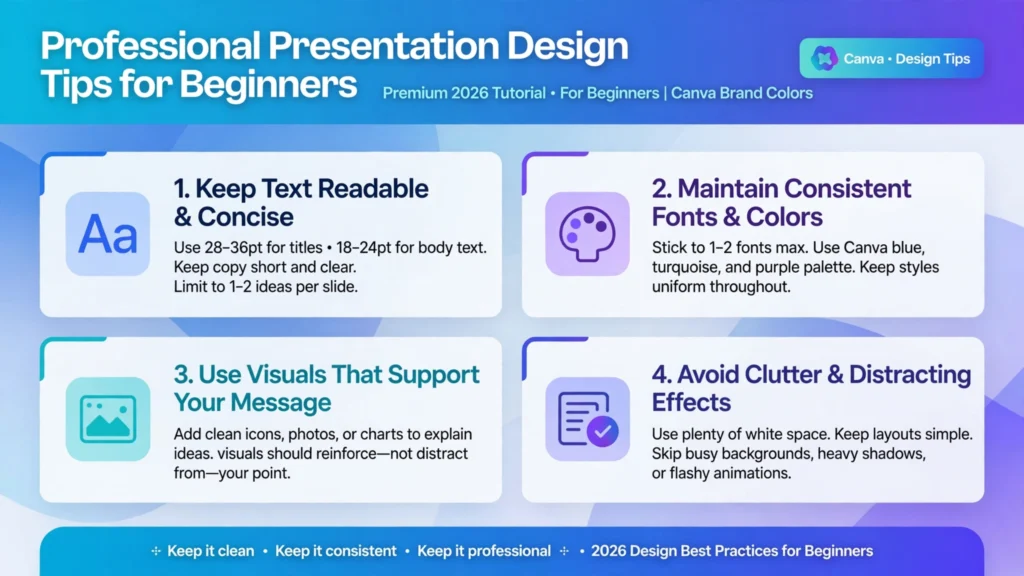 A professional presentation is not defined by how many design effects it contains. It is defined by how clearly it communicates its message.
Keep Text Readable and Concise
Choose text sizes that can be read from the back of a classroom or on a shared meeting screen. As a starting point, you might use titles around 28–36 points and body text around 18–24 points, adjusting for the room, screen, font, and amount of content.
These are practical guidelines, not strict rules. Preview the slides at presentation size to check readability.
If the content looks cramped, shorten the wording, increase the font size, or divide the information across multiple slides. Do not solve every space problem by making the text smaller.
Maintain Consistent Fonts and Colors
Use the same heading style, body-text style, and color palette throughout the deck. Keep titles in a similar position where practical, and use consistent spacing between elements.
Consistency helps the audience focus on the information rather than repeatedly adjusting to a new visual style.
You can still vary the layout when the content requires it. A title slide, a chart, and a closing slide do not need to look identical, but they should feel like parts of the same presentation.
Use Visuals That Support Your Message
Every image, icon, or chart should have a purpose. Before adding a visual, consider whether it explains an idea, provides evidence, helps compare information, or makes a concept easier to understand.
For example, a simple process diagram may be more effective than a decorative photograph when explaining how a service works.
Remove visuals that distract from the main message. If a slide communicates the idea clearly without an image, leaving it simple is perfectly acceptable.
Avoid Clutter and Distracting Effects
Leave enough empty space around text and images. Do not try to fill every corner of the slide.
Avoid unnecessary shadows, excessive animations, decorative lines, and too many competing colors. These elements can make a presentation harder to follow when they do not serve a clear purpose.
Before finishing, inspect each slide for overlapping elements, inconsistent alignment, spelling errors, and text that is too close to the edges.
How to Use Animations and Transitions
Animations can draw attention to important information, but they should not become the main attraction.
Choose Subtle Effects
Select an element or slide and look for the available animation controls in Canva’s editor. Depending on the design and current interface, you may be able to apply an effect to individual elements or an entire page.
For a professional presentation, use movement sparingly. A simple fade or another restrained effect can be enough to introduce information gradually.
For example, you might reveal the three stages of a process one at a time while explaining each stage. Avoid giving every heading, photograph, icon, and bullet a different animation.
Preview the result to make sure the movement is smooth and does not interrupt the explanation.
Check Which Features Are Available for Free
Canva offers some animation features on its Free plan, while other options or advanced controls may be restricted to paid plans. Availability can change, so check the labels shown in your account.
If an effect displays a Pro restriction, choose an available alternative or leave the element static. A presentation can look polished without animation.
Also consider how you plan to export the slides. Canva warns that animations and embedded videos may not behave as expected when a presentation is downloaded as a PowerPoint file. If those effects are essential, test the exported file before presenting.
How to Present, Share, and Download Your Presentation
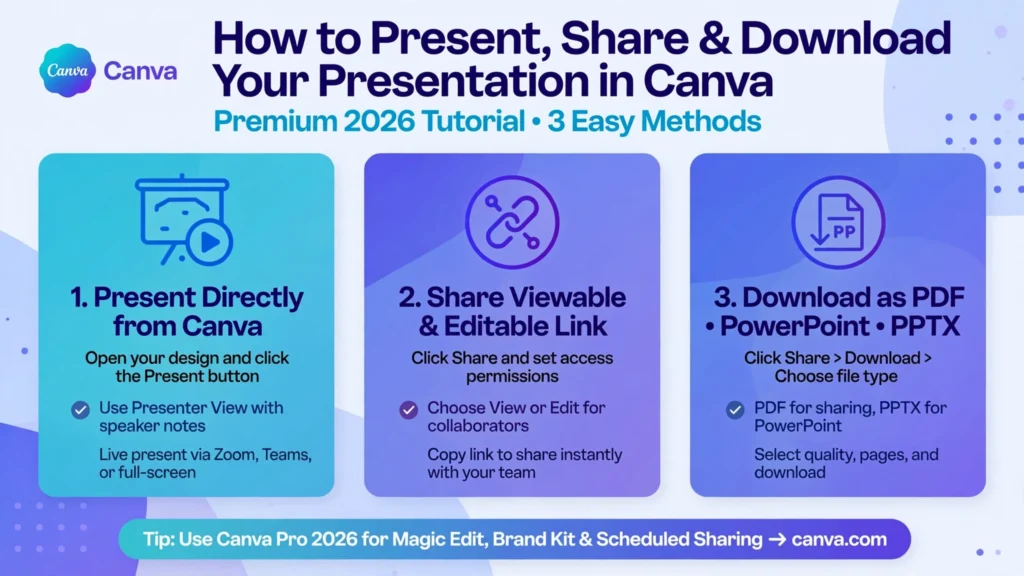 When your slides are ready, choose the delivery method that best suits your audience.
Present Directly From Canva
Open your completed presentation and look for the Present option in the editor. Choose an available presentation mode and follow the prompts to display your slides.
Before a live presentation:
- Open the deck and check that all slides load correctly.
- Test the display on the computer or screen you intend to use.
- Confirm that any required videos, links, or other media work.
- Keep a PDF or another suitable backup if you may lose internet access.
If you are presenting online, check whether the meeting platform allows you to share your browser window or screen.
Share a Viewable or Editable Link
Canva provides sharing controls that let you choose how other people access a design, subject to the options available to your account.
Look for Share in the editor. Review the access settings and choose an appropriate permission level before copying the link.
- Use view-only access when people need to read or review your slides.
- Use editing access when collaborators genuinely need to make changes.
- Check any organization or team restrictions that may apply.
Do not assume that every link is private. Review who can access the design before sharing confidential business information, student records, or other sensitive content.
Download as PDF or PowerPoint When Available
To download your presentation, open the design and select Share, followed by Download, then choose an available file type. Canva’s official download instructions explain the available formats and options.
Common choices include:
- PDF Standard: Useful for sharing a presentation that recipients can read without editing the slides.
- PDF Print: Intended for higher-resolution printing where available.
- PPTX (Microsoft PowerPoint): Useful when you need to continue working in PowerPoint or present using that software.
Canva lists PPTX export for presentations. The available options may depend on your design, account, and current features. If Canva displays a payment prompt, check whether the design contains premium elements or uses a restricted option before assuming the entire download requires a paid subscription.
After downloading a PowerPoint file, open it in PowerPoint and inspect the slides. Fonts, layouts, animations, and embedded videos may not transfer exactly as expected. Replace restricted assets or adjust the layout if necessary.
For step-by-step instructions, see Canva’s official guides: Download or save designs to your device and Choose the right download file type.
Common Canva Presentation Mistakes to Avoid
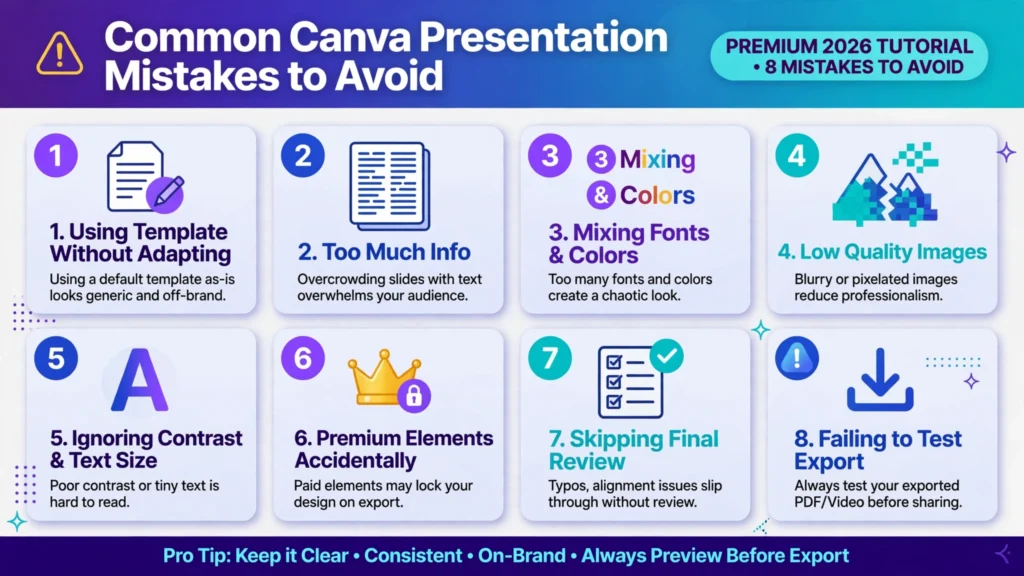 Even a good template can produce a weak presentation if the content and layout are not carefully edited. Watch out for these common mistakes:
- Using a template without adapting it: Replace sample text, irrelevant photographs, and placeholder charts with content that fits your subject.
- Putting too much information on each slide: Focus on one main idea and move supporting details to another slide or your spoken explanation.
- Mixing too many fonts and colors: Keep a consistent visual system so the deck feels unified.
- Using low-quality or irrelevant images: Choose clear visuals that support the point you are making.
- Ignoring contrast and text size: Check readability on the actual display or at a realistic viewing size.
- Using premium elements accidentally: Review any paid-content labels and download warnings before completing the deck.
- Skipping the final review: Correct spelling mistakes, check figures and source links, and confirm the slides are in the right order.
- Failing to test the exported file: Open the downloaded PDF or PowerPoint file before sending it to your audience.
A final review is often more valuable than adding another design effect. Take a moment to look at the entire presentation as your audience will see it.
Frequently Asked Questions
Is Canva free for making presentations?
Yes. Canva Free allows you to create presentations using available free templates, design elements, and editing tools. Some content and features require a paid plan, so check the labels in your account.
Can I download a Canva presentation for free?
Yes, you can download presentations using supported free export options when your design and account permit them. If Canva requests payment, check whether your slides contain premium content or use a restricted feature.
Can I make a Canva presentation on my phone?
Yes. You can use Canva’s mobile app to create and edit presentations. The controls may differ from the desktop editor, and arranging detailed slides can be easier on a larger screen.
Can I use Canva presentations for business?
Yes. Canva can be used to create business presentations, proposals, reports, and marketing materials. Check the licensing terms for the assets you use and follow your organization’s rules for confidential information and branding.
Is Canva suitable for beginners?
Yes. Its visual editor and ready-made templates make it accessible to people with little or no design experience. Beginners can start with a simple template and learn additional tools as their needs grow.
Conclusion
Learning how to make a professional presentation in Canva for free is mainly about choosing the right layout, organizing your ideas, and keeping the design consistent. You do not need premium effects or complicated graphics to create useful slides.
Start with a free template, focus each slide on one main point, use readable text, and choose visuals that support your message. Before presenting or sharing your work, review the slides and test the downloaded file.
With these habits, you can create clear, polished presentations for school, teaching, freelancing, and business without paying for design software.



















Leave a Comment
Your email address will not be published. Required fields are marked with *